Configuration → Import / Migrate walks you through loading leads from a spreadsheet: upload → map → fit check → duplicates → import → distribute → complete. You can download a sample file and review past imports from the same page.
Please note:
- Required standard columns map to First Name, Last Name, and Email (Phone, Company, Country are optional).
- Custom lead fields from Custom fields appear in the mapper when defined.
- Duplicate update permissions depend on your role — some users can import but not overwrite existing leads.
- Distribution uses the same pools as Lead Distribution.
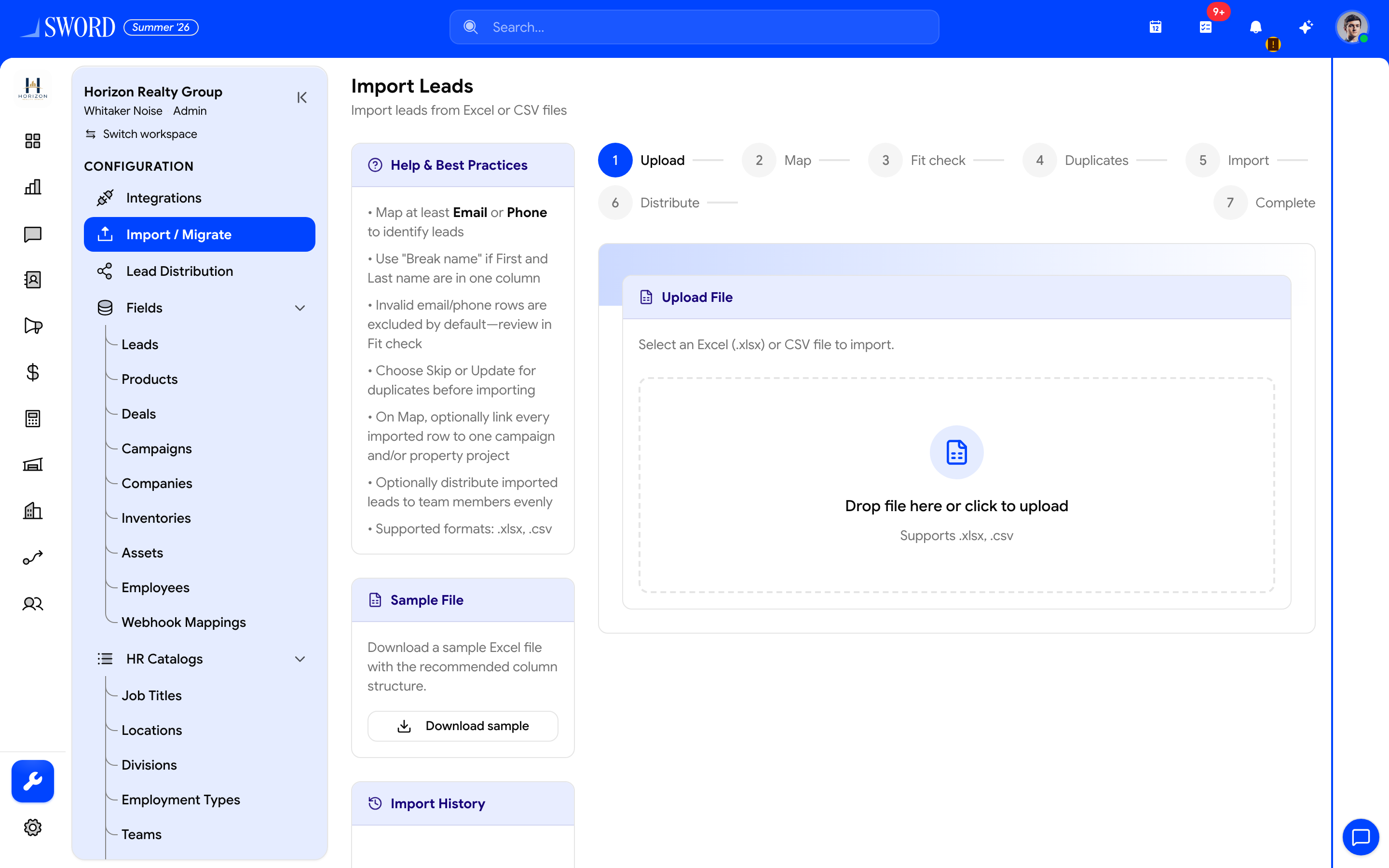
- Open Configuration → Import / Migrate
- Walk Upload → Map → Fit check → Duplicates → Import → Distribute → Complete
- Download the sample spreadsheet when needed
- Drop Excel/CSV to start mapping
Wizard steps
| Step | What you do |
|---|---|
| 1 Upload | Choose Excel/CSV; optionally download leads-import-sample.xlsx |
| 2 Map | Map spreadsheet columns → standard + custom fields; set campaign/project if prompted |
| 3 Fit check | Fix format issues (email/phone validation) |
| 4 Duplicates | Review matches; skip or update based on permissions |
| 5 Import | Confirm create/update counts and run import |
| 6 Distribute | Optionally assign owners via pools / round-robin |
| 7 Complete | Summary / certificate; history entry saved |
Sample file
Use Download sample for headers: First Name, Last Name, Email, Phone, Company, Country — then add your own columns and map them.
Import history
The page lists previous imports so you can reopen outcomes and distribution status. Prefer smaller batches when testing mapping and duplicate rules.
flowchart LR
  File[Spreadsheet] --> Map[Map columns]
  Map --> Fit[Fit check]
  Fit --> Dup[Duplicates]
  Dup --> Import[Create leads]
  Import --> Dist[Distribute]
  Dist --> Done[Complete]
Next: tune source routing under Configure lead distribution, or continue working records in Create and manage leads.