Leads are the front door of your sales process in EDGE Sword. Each lead lives in your tenant with an owner, pipeline stage, source, and interaction history — ready to convert into a Deal when qualified.
Create a lead
- Open Leads from the sidebar.
- Select New lead.
- Enter name, contact details, phone, and email.
- Set source (inbound, referral, campaign, etc.) and assign an owner — match source codes to campaigns and forms when leads arrive from marketing, or from Facebook Lead Ads. Bulk loads use Import / Migrate; automatic ownership uses Lead Distribution.
- Link a Company if the account is already known.
- Save — the lead appears on list views, Pulse, and pipeline boards according to permissions. Field reps capturing leads in the Salesmen portal land in the same pipeline.
Lead fields worth capturing early
| Field | Why it matters |
|---|---|
| Source | Attribution in Pulse and marketing reports |
| Owner | Drives read_own permissions and follow-up accountability |
| Pipeline stage | Powers funnel charts and board views |
| Company link | Rolls activity up to the account |
| Project (if used) | Filters multi-vertical tenants |
Custom fields configured under Configuration → Fields appear on the lead form for industries that need extra attributes.
Pipelines and stages
Move leads through pipeline stages as conversations progress. Stages are configured per workspace under Configuration → Pipelines — see Configure sales pipelines for stage design guidance. Reps update stage from the lead profile or by dragging cards on the board.
Typical progression:
flowchart LR
  A[New lead] --> B[Contacted]
  B --> C[Qualified]
  C --> D{Ready?}
  D -->|Yes| E[Convert to deal]
  D -->|No| F[Update stage or mark lost]
  E --> G[Deal pipeline]
Convert to a deal
When a lead is qualified:
- Open the lead record and choose Convert to deal (or equivalent action in your workspace).
- Confirm amount, close date, and pipeline if prompted.
- Related Company and contact data carry over when linked.
Conversion keeps revenue forecasting in Deals separate from top-of-funnel volume in Leads.
Permissions
Please note:
- Users without Leads read (own or all) cannot open records they do not own — align owner assignment before bulk imports.
- Lead visibility follows roles, permissions, and RBAC for your workspace.
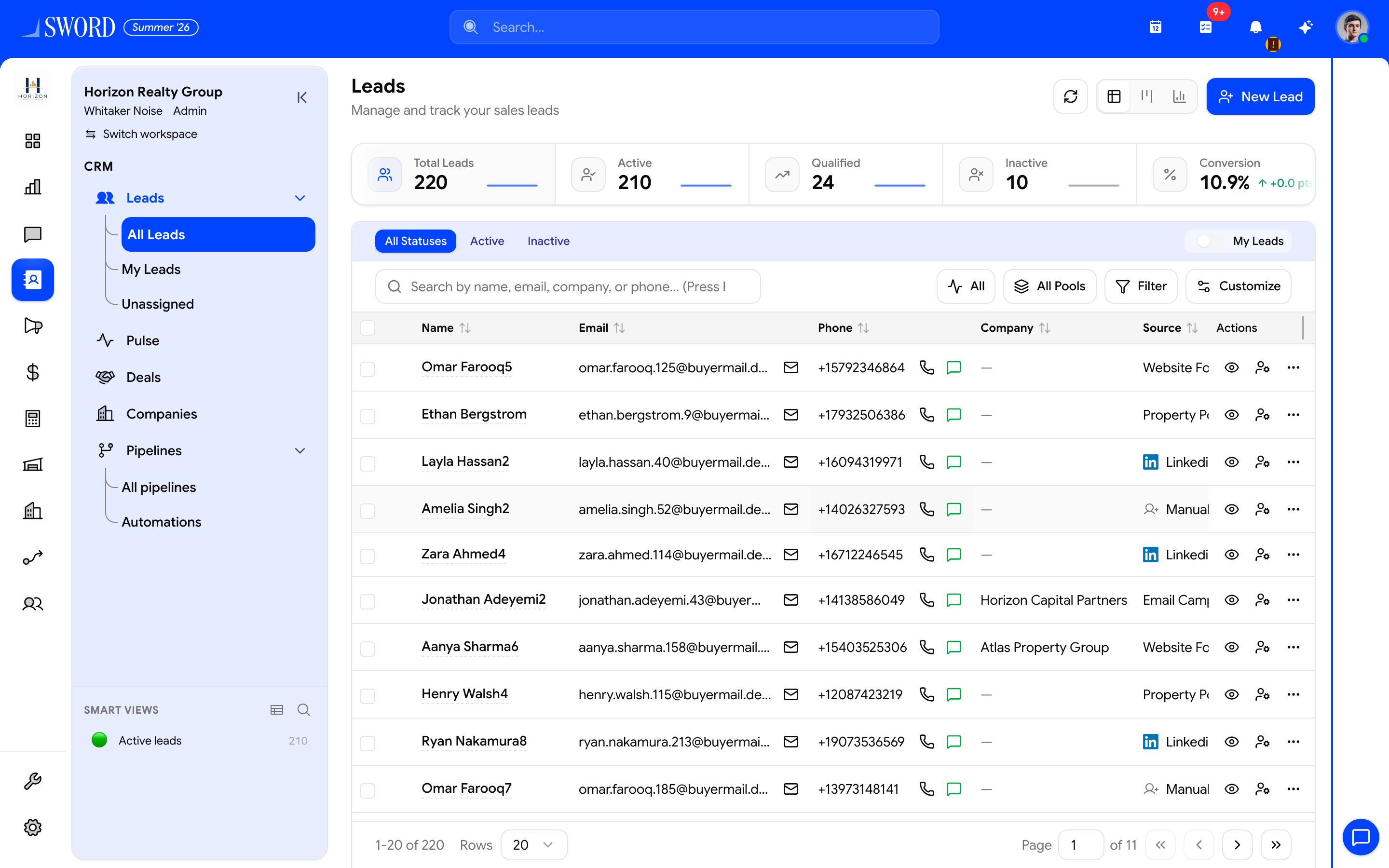
- Open CRM → Leads → All Leads
- Create with + New Lead
- Glance at total, active, qualified, and conversion
- Search, filter by status/pool, and open a row
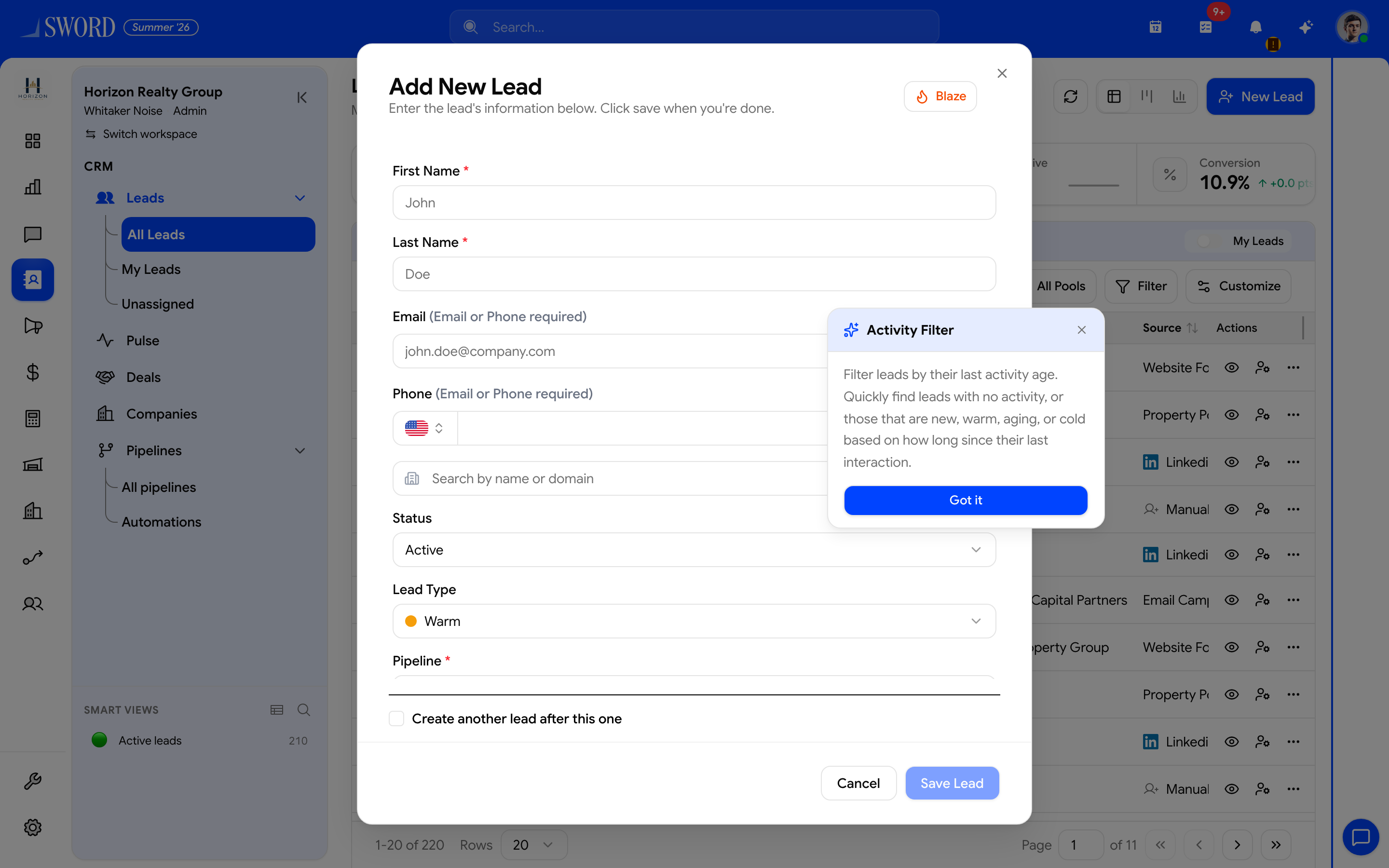
- Enter name, contact details, source, and owner
- Save — the lead appears on lists, Pulse, and boards
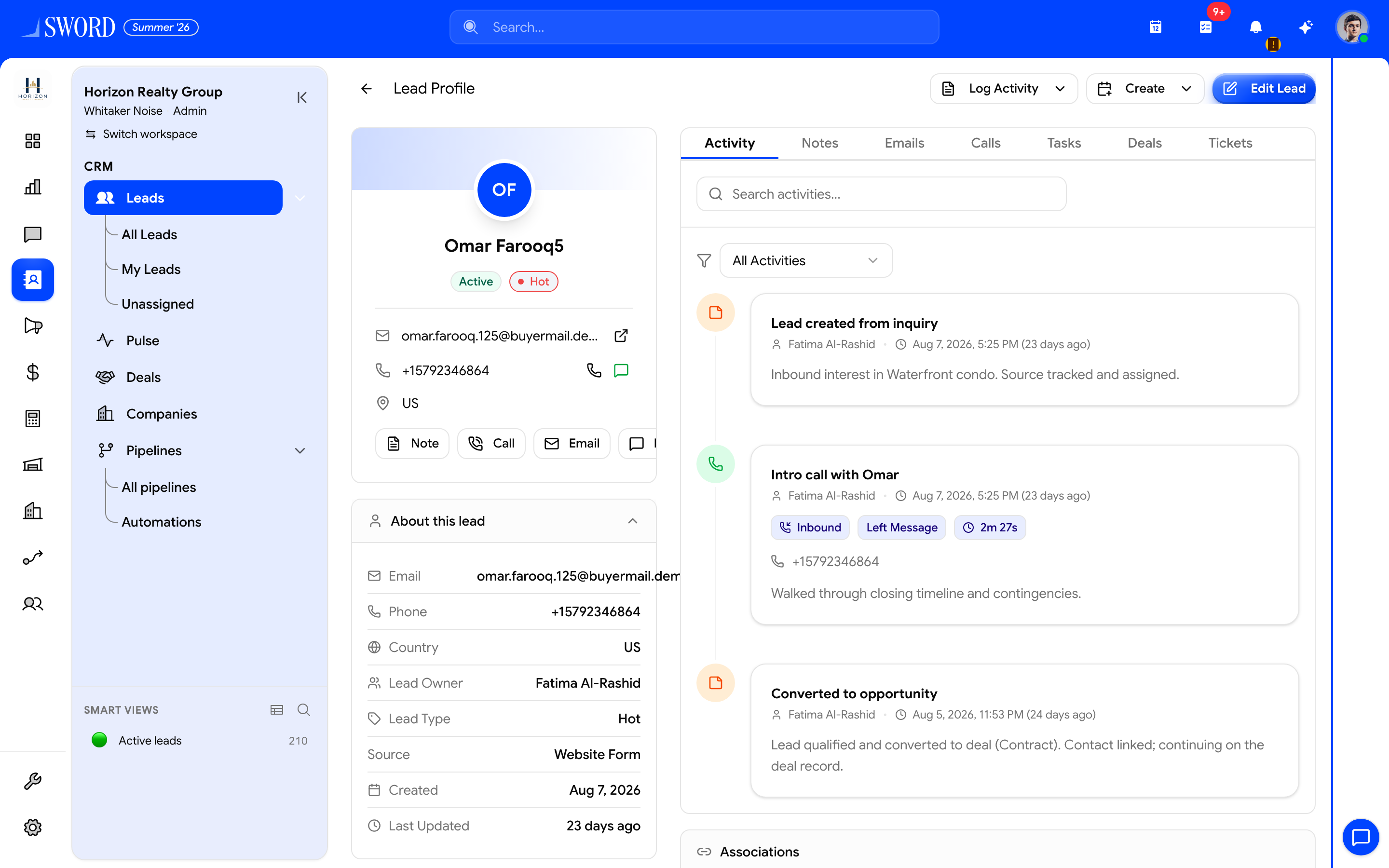
- Owner, type, source, and contact facts
- Edit Lead or log activity from the header
- Activity / Notes / Calls / Deals tabs for history
Lead visibility follows your tenant RBAC:
| Permission pattern | Effect |
|---|---|
| Leads read (own) | See leads you own or are assigned |
| Leads read | See all leads in the workspace |
| Leads create / update | Add and edit records |
| Leads delete | Remove leads — usually limited to admins |
Best practices
- Capture source on every lead — Pulse and source breakdown widgets depend on it.
- Log Interactions after each touch so handoffs stay clear and Pulse staleness stays accurate.
- Review stale leads weekly using Pulse or saved filters for untouched records.
- Before bulk imports, align on owner assignment rules so read_own users are not locked out of new records.
Leads share the same tenant boundary as every other module — users only see data their roles and workspace allow.