The Assets module helps property and facilities teams maintain an accurate register of buildings, units, equipment, and fixtures tied to your operations.
Please note:
- Asset codes must stay unique within the workspace — duplicates break imports and cross-module links to Manage projects.
- Enable the Property module under Configure your workspace before bulk imports.
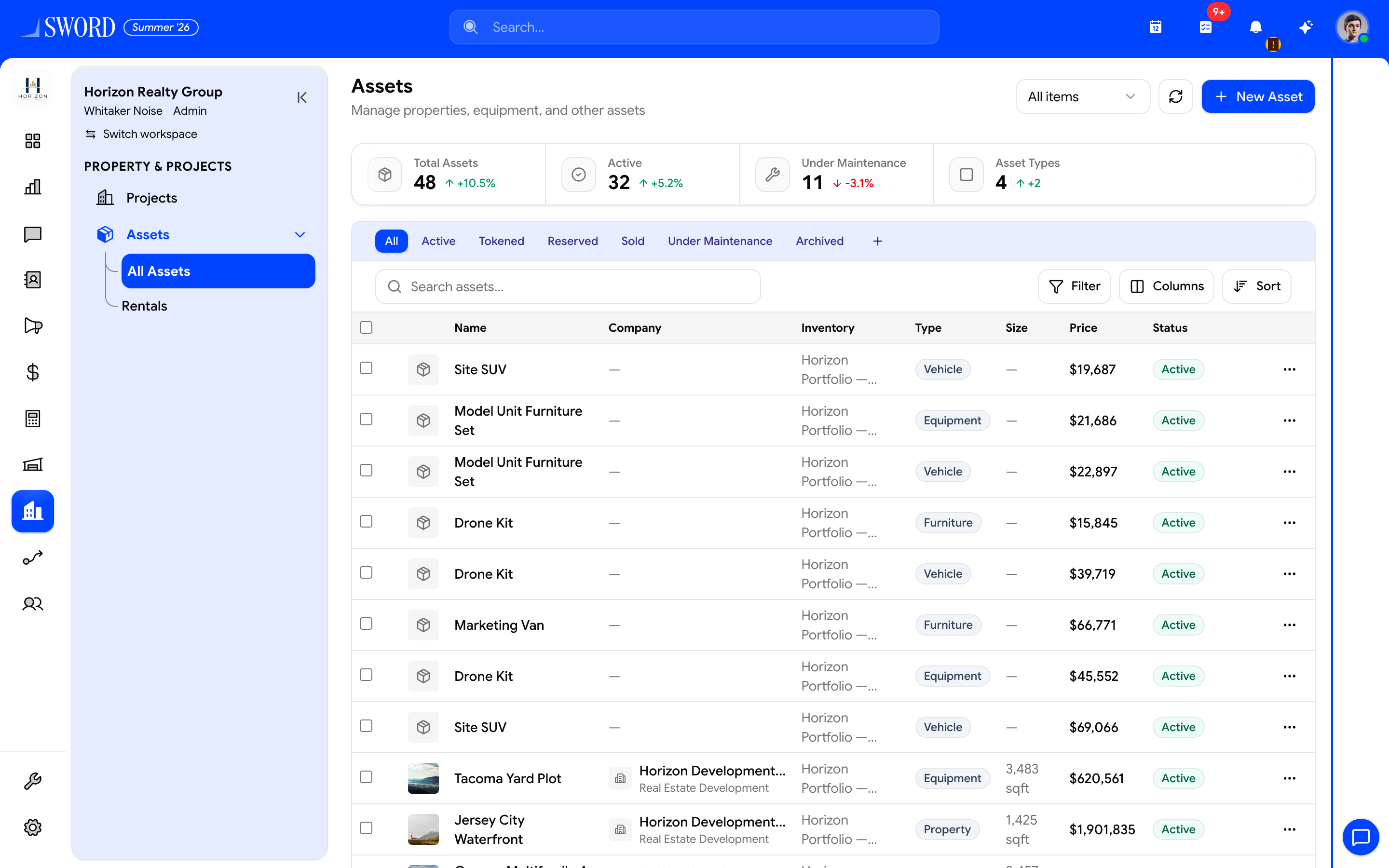
- Open Property → Assets → All Assets
- Create with + New Asset
- Glance at total, active, and under-maintenance counts
- Filter All / Active / Sold / Under Maintenance / …
- Search and open a row for identity, location, type, price, and status
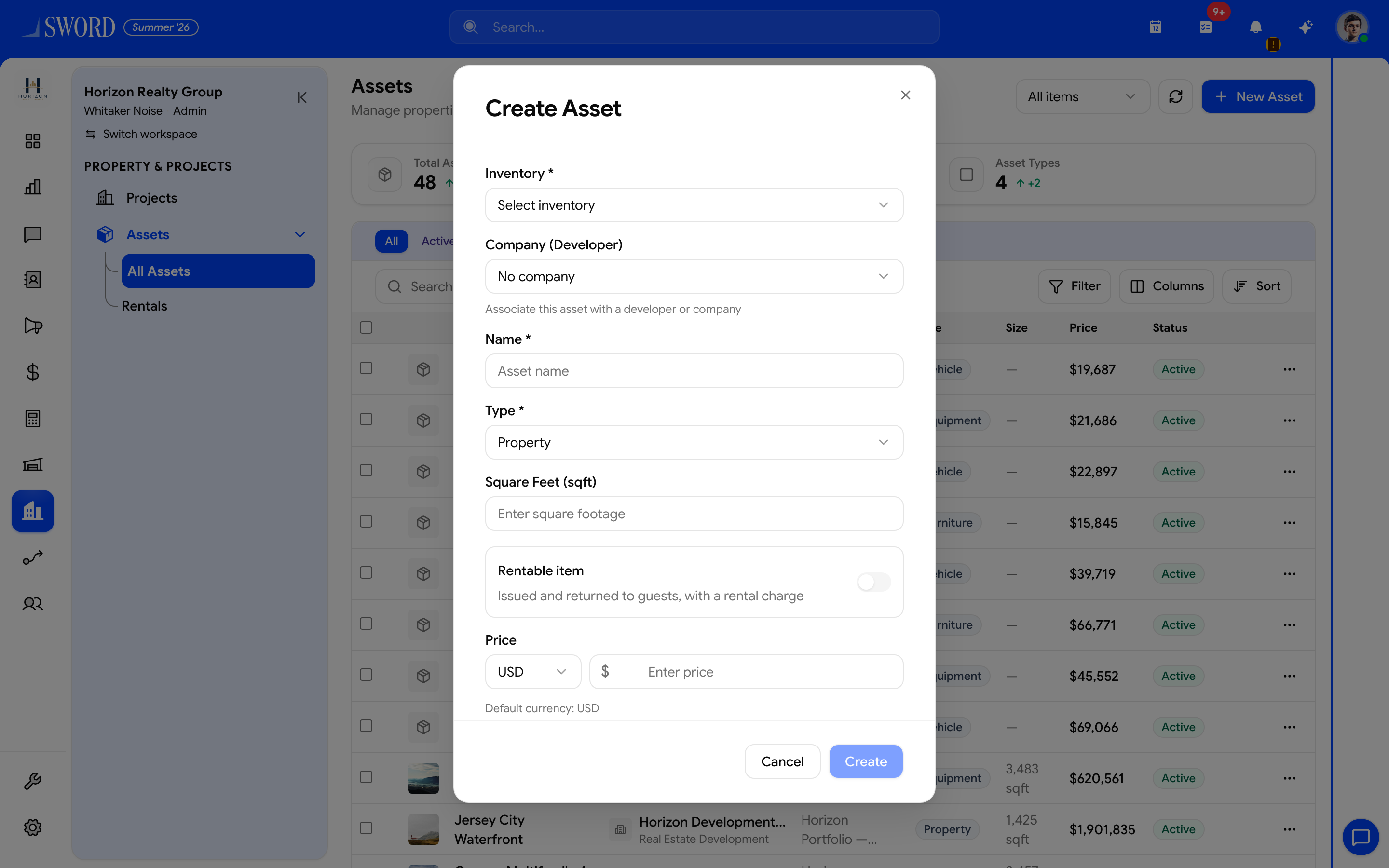
- Pick the inventory portfolio the asset belongs to
- Set name, type (Property, Equipment, …), and size when relevant
- Enter price / currency; optional rentable-item toggle
- Create saves the register entry
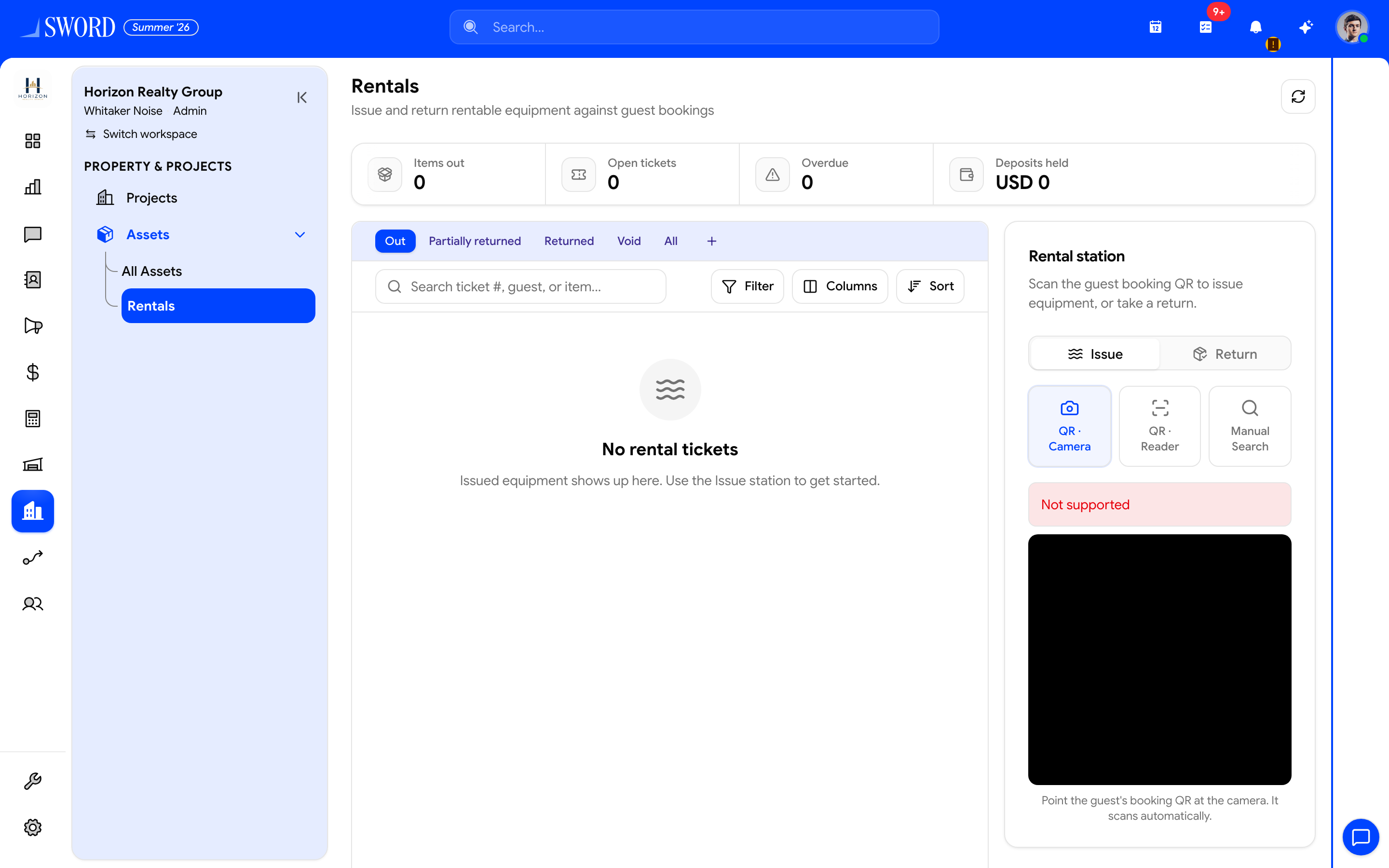
- Open Assets → Rentals for rentable equipment
- Issue and return items against bookings when used
Asset record essentials
| Field area | Examples | Why it matters |
|---|---|---|
| Identity | Name, asset code, category | Search and reporting |
| Location | Site, floor, unit | Dispatch and inspections |
| Status | Active, under repair, retired | Availability and compliance |
| Ownership | Entity, cost center | Finance and capital planning |
| Linked records | Projects, work orders | Traceability |
Keep asset codes unique within the workspace so imports and integrations stay reliable.
Add and maintain assets
- Open Property → Assets
- Select New asset and enter identity and location
- Set status and link to a site or project when applicable
- Attach documents (leases, warranties) when document storage is enabled
- Update status as maintenance or disposition events occur
Bulk import is available for large portfolios — validate categories and locations before upload.
Lifecycle overview
Assets move through operational states as work completes. Retired assets remain in history for audit; do not delete records with financial ties.
stateDiagram-v2
  [*] --> Active
  Active --> UnderRepair: Maintenance scheduled
  UnderRepair --> Active: Work complete
  Active --> Retired: Disposed or sold
  UnderRepair --> Retired: Beyond repair
  Retired --> [*]
Connect assets to Manage projects when capital improvements affect valuation or depreciation schedules.