You can let someone see the Employees directory (or only their direct reports) without exposing every profile section — and you can let people edit their own profile for selected fields only, optionally with an approver before changes apply.
Configure this on the role — not on the directory column picker. Open Settings → Roles & Permissions, edit a role, and use the Fields › panel on the Employees permissions.
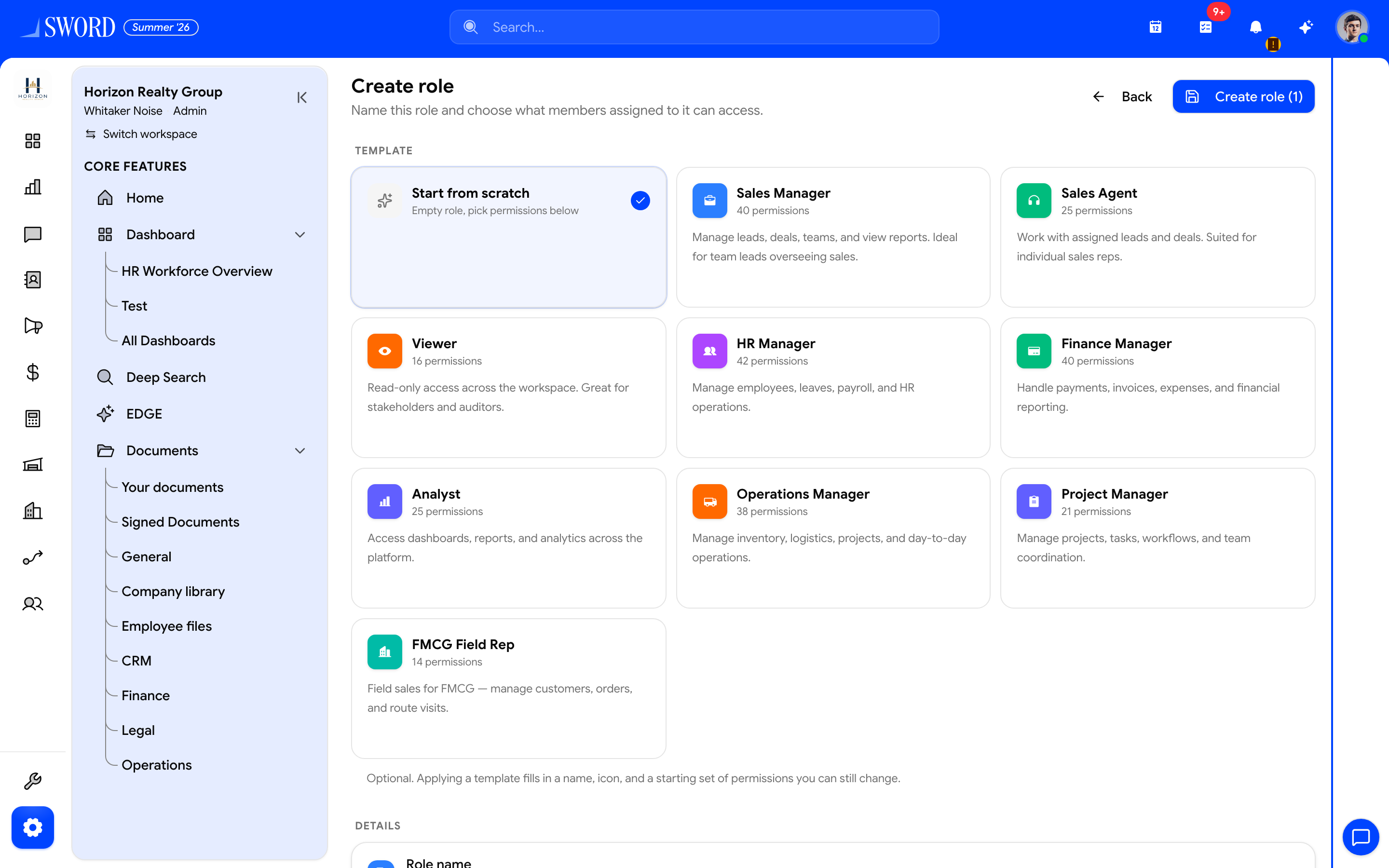
- Open Settings → Roles & Permissions → Create role (or edit an existing role)
- Optional templates seed a starting permission set
- Save when the grants below are ready
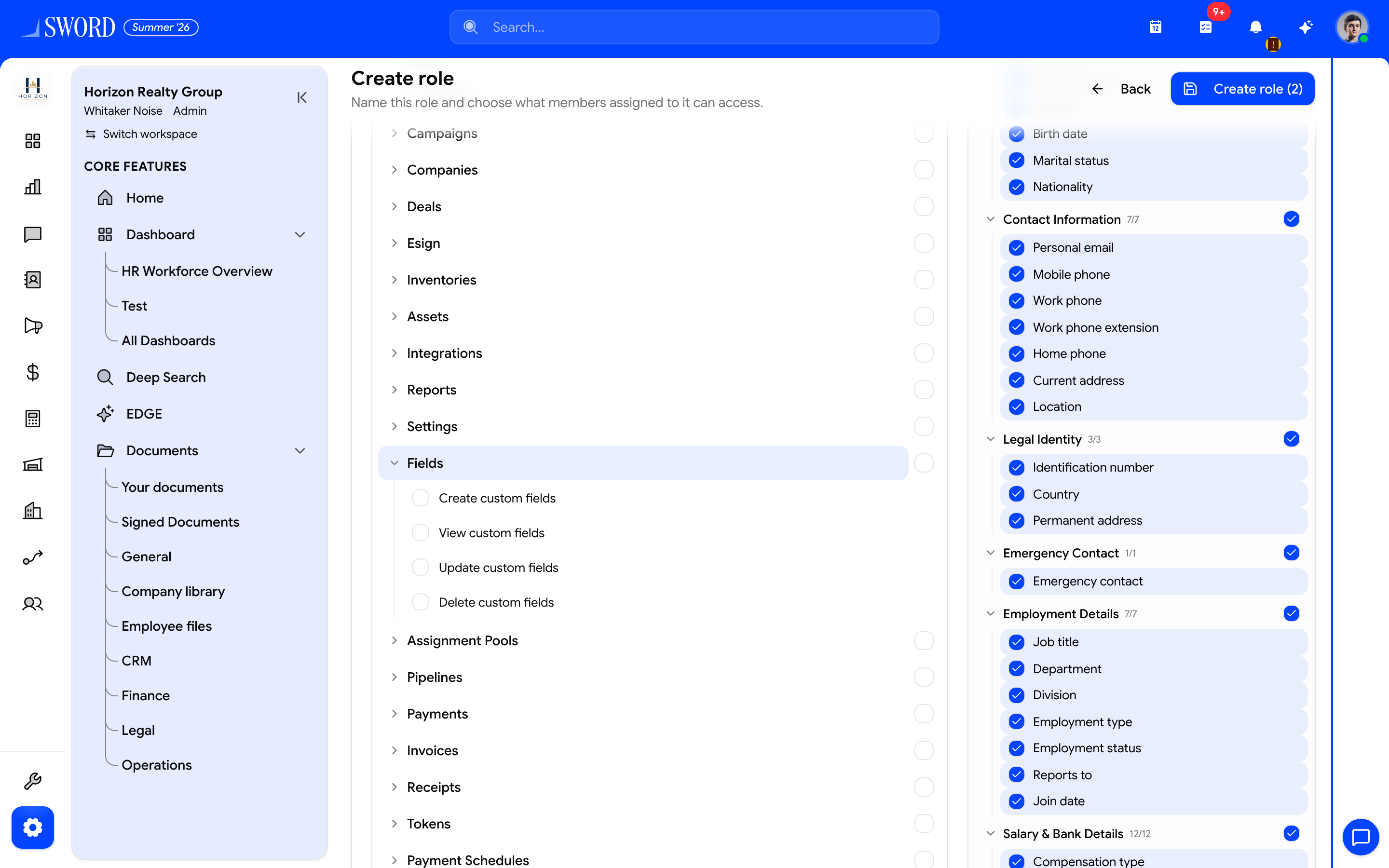
- Under Employees, open the nested Fields › panel for view / reports / own-profile grants
- Toggle whole sections (Contact, Legal identity, …) or individual fields
- Employment details for directory and profile headers
- Sensitive groups such as salary and bank stay off unless explicitly granted
Please note:
- Customize Employee Columns on the Employees page only saves your personal table layout. It does not change what the role is allowed to see.
- Name, work email, and photo stay visible so lists and the directory still work, even when a role is restricted.
- Training, Benefits, Leaves, and Documents profile tabs are hidden for field-restricted viewers (they can still open those modules’ own pages if they have module permissions).
Three grants that open a Fields panel
| Permission (catalog label) | Nested panel title | What it controls |
|---|---|---|
View employees (choose sections and fields) (employees.read) |
Employee fields | Whole-company directory + any employee profile |
View profiles of people who report to you (choose sections and fields) (employees.read_reports) |
Direct report fields | Reporting-line people only |
Edit own employee profile (choose sections, fields, and optional approval) (employees.update_own) |
Own profile fields | Self-service edits on My Profile (+ optional approval) |
employees.update (Update employee details) is the full HR edit of other people’s profiles — it does not use the Fields panel.
flowchart TB
  Role[Edit role → Employees] --> Read[View employees → Fields]
  Role --> Reports[View reports → Fields]
  Role --> Own[Edit own profile → Fields]
  Own --> Approval[Optional Require approval]
  Read --> Dir[Directory + profiles]
  Reports --> Line[Direct reports only]
  Own --> My[My Profile Edit]
  Approval --> Hub[Approvals → Profile updates]
How to configure sections and fields
- Open Settings → Roles & Permissions → create or edit a custom role (Roles in Settings)
- Under Employees, enable one of the three permissions above
- Click Fields › (the label may show · N fields)
- In the side panel: Search fields…, Select all, Clear, or expand a section and tick individual fields
- Custom employee fields appear under Custom sections (create them under Fields → Employees if the list is empty)
- For own-profile edit, optionally turn on Require approval and pick who reviews
- Save role and assign it under Manage members
How selection is stored
| Selection | What the role stores |
|---|---|
| Entire built-in section checked | One .section.<id> key (not every field) |
| Partial section | Individual .field.<fieldId> keys |
| Entire custom section | .customSection.<name> |
| Individual custom fields | .custom.<fieldMongoId> |
Plain grant vs Fields configured
| Permission | With no Fields selection saved | After you use the Fields panel |
|---|---|---|
employees.read |
Unrestricted (full view — backwards compatible) | Restricted: employees.read.fields_configured plus the sections/fields you chose (can be intentionally empty = identity only) |
employees.read_reports |
Identity only (name, work email, photo) | Nested sections/fields expand what managers can see |
employees.update_own |
Enabled but no editable fields until you pick some | Only chosen sections/fields can be edited |
Sections and fields you can grant
These built-in sections appear in all three Fields panels:
| Section | Fields |
|---|---|
| Personal Information | First name, Middle name, Last name, Preferred name, Gender, Birth date, Marital status, Nationality |
| Contact Information | Personal email, Mobile phone, Work phone, Work phone extension, Home phone, Current address, Location |
| Legal Identity | Identification number, Country, Permanent address |
| Emergency Contact | Emergency contact |
| Employment Details | Job title, Department, Division, Employment type, Employment status, Reports to, Join date |
| Salary & Bank Details | Compensation type, Commission %, Base salary, Currency, Payment frequency, Bank name, Account number, Account title, Cheque number, IBAN, Allowances, Deductions |
| Account Information | Original hire date, Probation end date (login / system timestamps are not grantable) |
| Additional details | Emergency contacts, Dependents, Education, Equipment, Client assignments (Details tab satellites) |
Not in the Fields picker (module / system tabs): Roles, Timeline, Training, Benefits, Leaves, Documents.
What restricted viewers see
Employees directory (/dashboard/hr/employees)
| Role has | Directory subtitle / scope |
|---|---|
employees.read |
Full directory (columns limited by view grants) |
Only employees.read_reports |
People who report to you |
- Columns the role cannot view are omitted from Customize Employee Columns and from the table (you cannot turn Salary on without a salary grant).
- Identity columns stay available: Employee, Employee ID, Contact, Work Email, Account Status, External.
- Administrators can still use Customize metrics for tenant-wide KPI tiles; salary-like metric values still respect compensation grants.
Employee profile (/dashboard/hr/employee/:id)
When the viewer is field-restricted (employees.read with fields_configured, or reports-only):
| Profile nav | Behavior |
|---|---|
| Contact, Account | Stay available as chrome |
| Personal, Employment, Legal, Emergency, Salary | Shown only if at least one field in that section is granted |
| Details | Shown only with Additional details grant |
| Comp History | Follows salary / compensation grant |
| Roles, Timeline | Hidden |
| Training, Benefits, Leaves, Documents | Hidden on the profile (even if the user can open those modules elsewhere) |
| Custom field groups | Stay in nav; individual custom fields still gated |
Ungranted fields simply do not appear as rows (no “••••” placeholders). Opening a profile: self always; directory readers any employee; read_reports only people in their reporting line.
Edit others vs edit own
| Capability | Who | Scope |
|---|---|---|
employees.update (or admin) |
HR | Full edit of others’ profiles (and typically self with full power) — no Fields panel |
employees.update_own + nested fields |
Staff on My Profile | Only granted sections/fields; Edit Profile → Save / Cancel |
| Neither | Viewer | Read-only |
Self-edit cannot change Roles, Timeline, Training, Benefits, Leaves, or Documents tabs via this grant.
Require approval for own-profile changes
On the Own profile fields panel:
- Toggle Require approval — Stakeholders review own-profile changes before they apply, like leave requests.
- Choose an approver type:
| Option | Behavior |
|---|---|
| Direct manager | Uses the employee’s reporting manager. If they have none, changes apply immediately. |
| Specific user | Pick a reviewer (Select reviewer). If none is chosen, changes apply immediately. |
| Everyone in the department | Any other active member in the employee’s department can approve. If they are not in a department, changes apply immediately. |
What the employee sees
- My Profile → Edit Profile → change granted fields → Save
- Toast: Submitted for approval. Changes will apply after review.
- Banner: Profile changes pending approval — Your updates are waiting for {their direct manager / a designated reviewer / anyone in their department}. They will apply after someone reviews them. Saving again replaces this request.
What the approver sees
- Approvals hub → filter Profile updates — item title like Review profile updates for {name}, summary {n} proposed change(s)
- Or open the employee profile: Field / Current / Requested table with Approve / Reject (Reject these profile changes? They will not be applied.)
People with employees.update can also resolve pending profile requests.
Example setups
HR assistant: contact + job title only
- Enable View employees… → Fields
- Clear, then enable Contact Information and Job title under Employment
- Save — directory and profiles show identity + those fields; Salary, Details, Roles, Timeline, and module tabs stay hidden on profiles
Manager: reports’ personal + emergency only
- Enable View profiles of people who report to you… → Fields
- Select Personal Information and Emergency Contact (no Salary)
- Manager opens a report: those sections only; no compensation; no Training / Benefits / Leaves / Documents on the profile
Staff: edit address with manager approval
- Enable Edit own employee profile… → Fields
- Grant Contact Information (or Current address only)
- Require approval → Direct manager
- Employee saves → pending banner; manager approves from Approvals or the profile
Related
- Manage employees and profiles — Add Employee wizard, profile overview, KPIs
- Roles in Settings — full-page permission editor
- Roles, permissions, and RBAC
- Departments and hierarchy — manager links for Direct manager approval
- Approvals hub
- Custom fields — employee custom sections in the Fields panel