Pipelines define the stages leads and deals move through in EDGE Sword. Configuring them once per workspace keeps boards, forecasts, and Pulse funnel charts aligned with how your team actually sells.
Who configures pipelines
Pipeline setup lives under Configuration. Users need pipeline create, update, or delete permissions (typically admins or revenue operations roles). See roles, permissions, and RBAC if you need to adjust who can edit pipelines. Changes apply tenant-wide; individual reps move records through stages on the Deals board but do not redefine the pipeline structure unless granted access.
Please note:
- Pipeline changes affect every user in the workspace — coordinate with RevOps before renaming or removing stages.
- Reps need Pipelines read to see stages on boards; without it, deal and lead views may look empty.
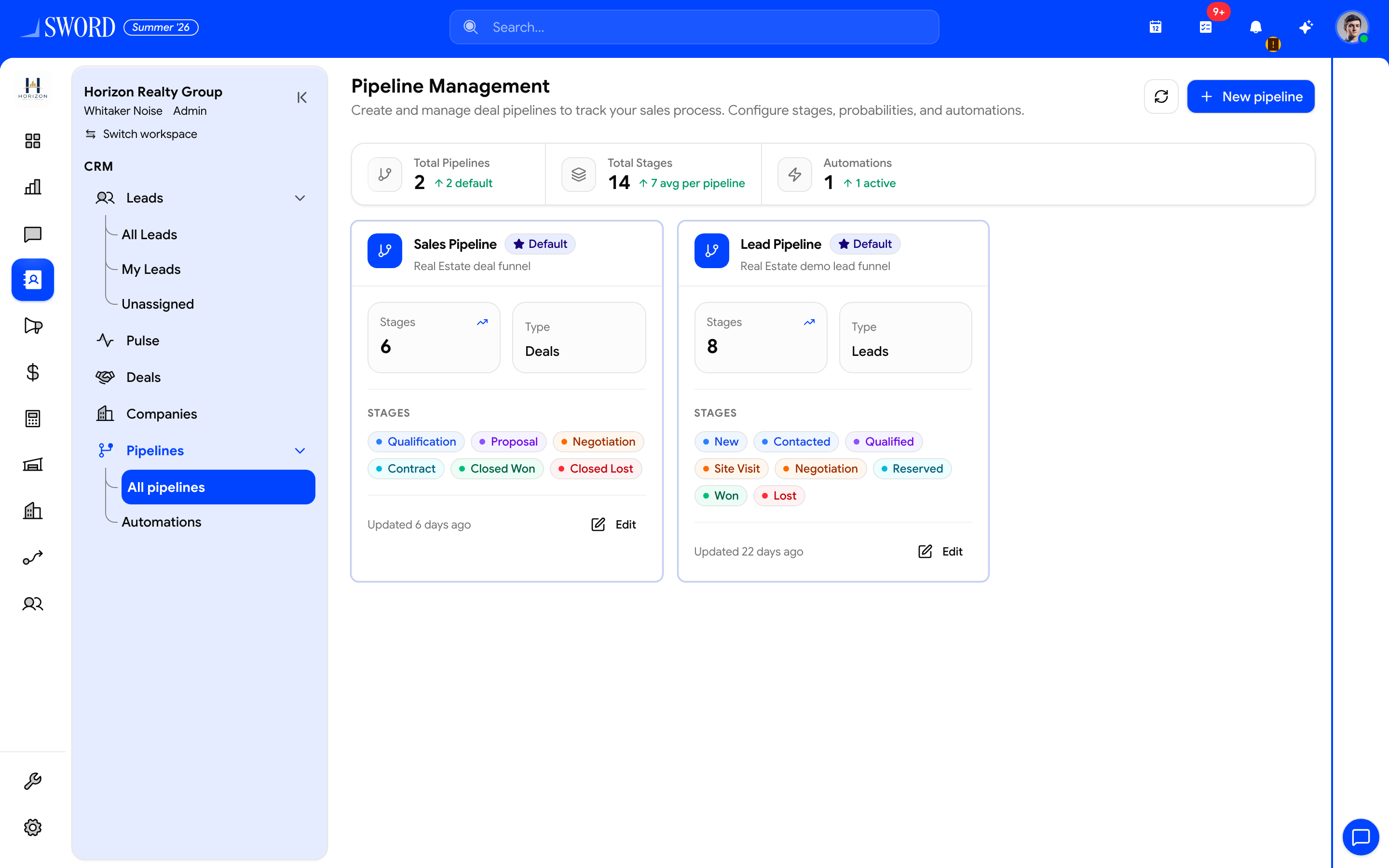
- Open Configuration → Pipelines (or CRM → Pipelines)
- Create another pipeline with + New pipeline
- Sales Pipeline stages for deals
- Lead Pipeline stages for lead boards and Pulse
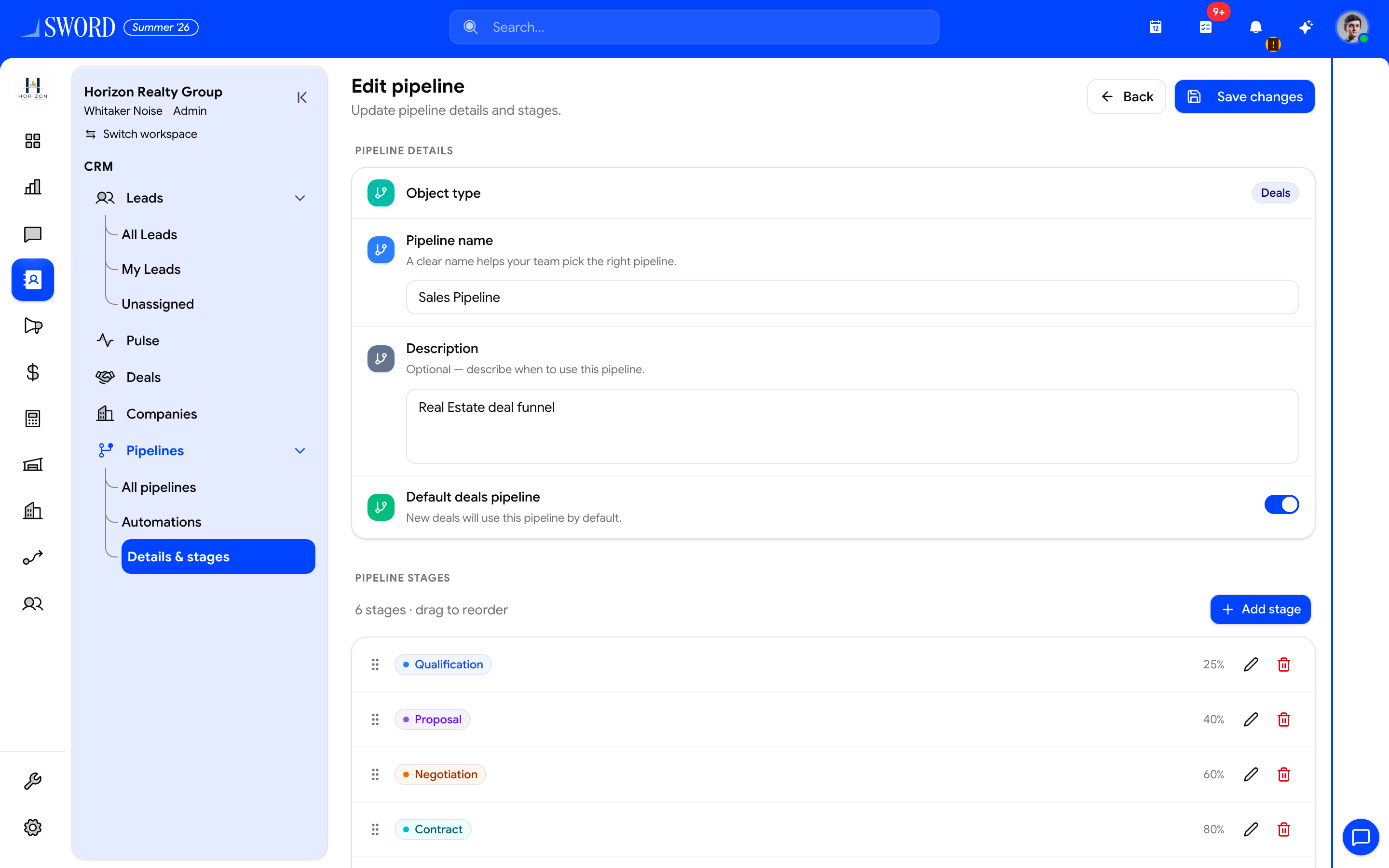
- Open Edit on a pipeline card
- Reorder stages, set probabilities, and save
Create or edit a pipeline
- Open Pipelines from Configuration.
- Select New pipeline or open an existing one.
- Name the pipeline (for example, Enterprise, Inbound, Partner).
- Add stages in order from first touch to closed won or lost.
- Set which pipeline is the default for new leads or deals if your workspace supports multiple pipelines.
- Save and verify the Deals board and Leads views show the updated stages.
Stage design guidelines
| Stage type | Purpose | Example labels |
|---|---|---|
| Early | Qualification and discovery | New, Contacted, Qualified |
| Middle | Evaluation and proposal | Demo, Proposal, Negotiation |
| Terminal | Outcome | Closed Won, Closed Lost |
Keep stage names short and unambiguous. Too many middle stages make forecasting noisy; too few hide where deals stall.
Connect pipelines to daily work
- Leads use pipeline stages until conversion; after conversion, Deals continue on the deal pipeline (or the same pipeline, depending on your setup).
- Drag cards on the deal board or change stage on the record — both update the same field.
- Pulse funnel widgets read stage distribution; misconfigured stages skew manager dashboards.
- Inbound leads from Build forms inherit the default pipeline — confirm marketing hidden fields set the right pipeline when you run multiple motions.
- Stage changes should follow logged interactions; reps who only drag cards without timeline entries leave Pulse staleness unchanged.
stateDiagram-v2
  [*] --> New
  New --> Contacted : First outreach
  Contacted --> Qualified : Need confirmed
  Qualified --> Proposal : Deal created
  Proposal --> Negotiation
  Negotiation --> ClosedWon : Signed
  Negotiation --> ClosedLost : No decision
  ClosedWon --> [*]
  ClosedLost --> [*]
Multi-pipeline tenants
Some organizations run separate pipelines per product line, region, or motion:
- Create one pipeline per motion with distinct terminal stages.
- Train reps to pick the correct pipeline when creating a lead or deal.
- Use filters on boards and reports to compare pipelines side by side.
Stage automations
In the pipeline editor, attach stage automations — required properties, movement rules, activity logging, auto-assign, auto tasks, deal payments, and lead-to-deal prompts. Full reference: Pipeline stage automations.
Inbound sources should target the correct default pipeline via Lead Distribution.
Governance tips
- Document stage definitions in an internal playbook so new hires interpret stages the same way.
- Review stage aging monthly; rename or merge stages that nobody uses.
- Pair pipeline changes with Workflows (for example, notify managers when a deal sits in Negotiation more than 14 days) — see Build your first workflow.
After pipeline changes, ask reps to refresh saved views — cached filters may still reference retired stage names until updated.
If Facebook Instant Form leads should teach Conversion Leads ads (Qualified, Appointment Booked, Junk), map those lead stages under Send Facebook lead outcomes to Meta.