Covenant is EDGE Sword’s e-signature module (nav label Covenant). Upload a PDF, add signers, place signature fields, send signing links, then preview or download the completed file with an audit trail.
Please note:
- Enable the esign module under Enable and manage modules and grant
esign.read/esign.create/esign.sendas needed.- The Covenant sidebar appears for senders/creators (
esign.send,esign.create, or admin) — signers-only users do not see the desk.- Only PDF uploads are supported (max 20MB).
- New-hire offer packets use a separate flow — see Covenant hire packets.
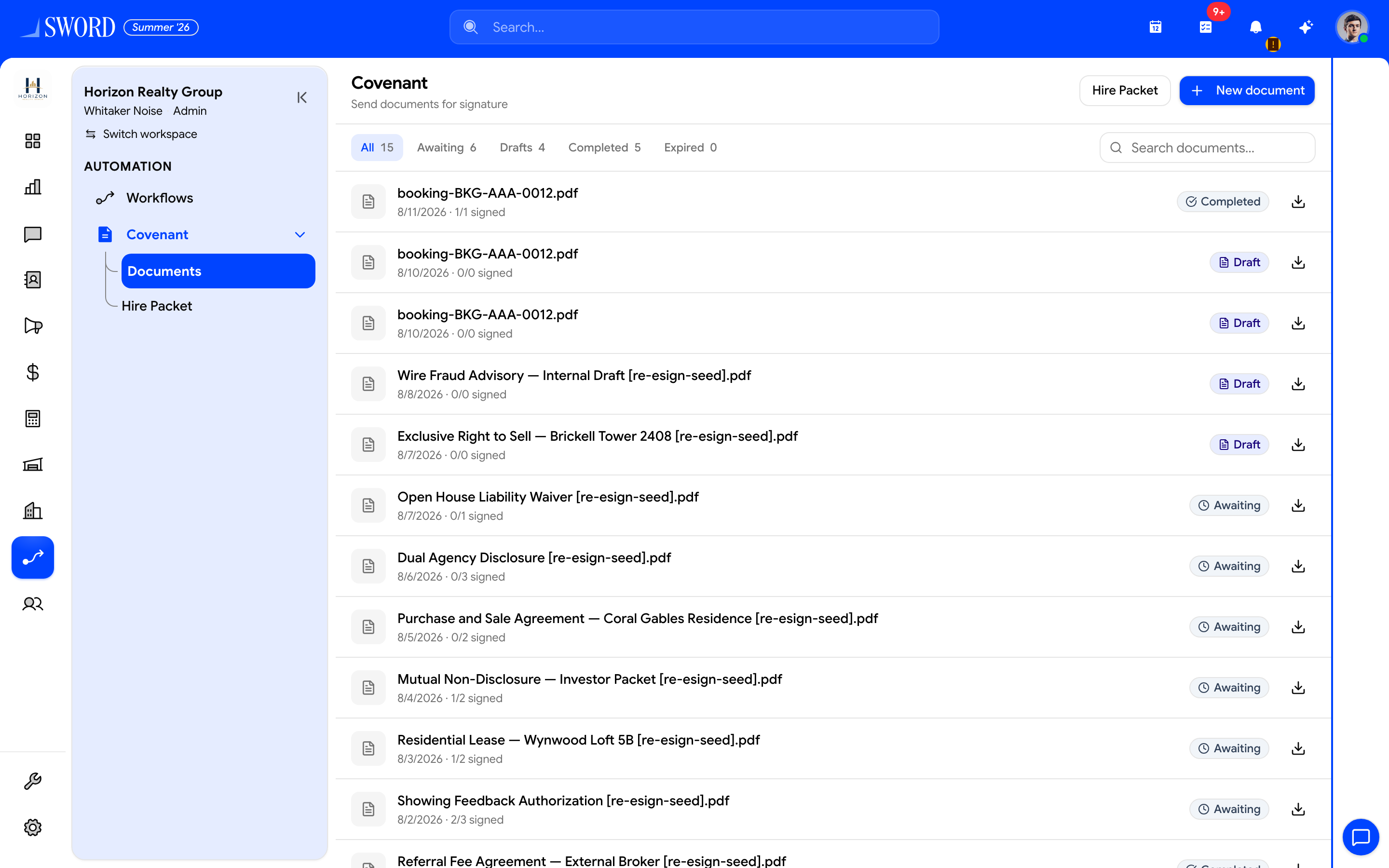
- Open Covenant → Documents
- Start with + New document
- Filter All / Awaiting / Drafts / Completed
- Track signing progress and download completed PDFs
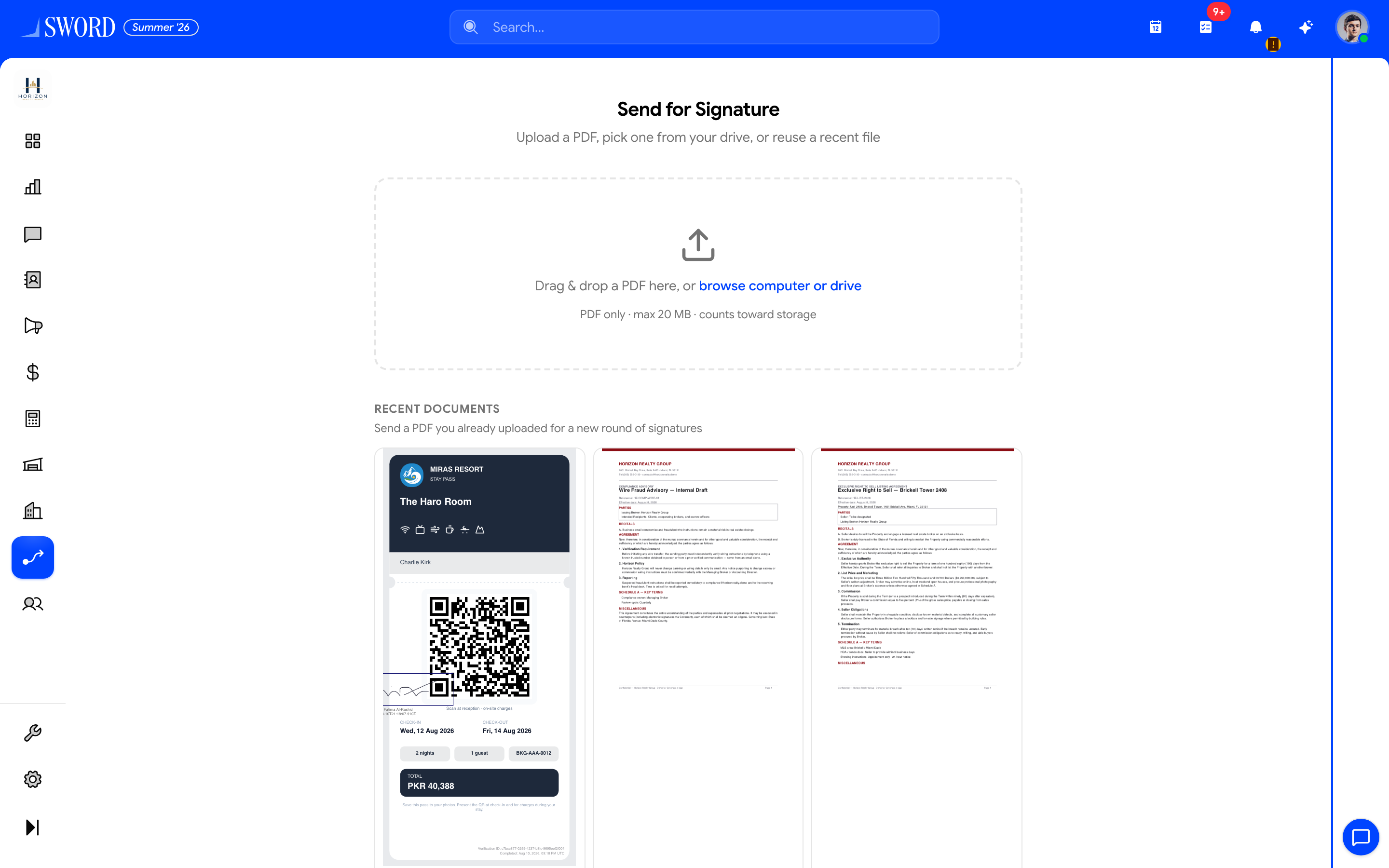
- Drop a PDF, browse your computer, or pick from Documents
- Reuse recent files when available
Open Covenant
- Enable Covenant (
esign) in Settings → Modules - Open Covenant from the sidebar (Documents list at
/dashboard/esign) when you can send or create - Use New Document to start a packet, or Hire packet for onboarding templates
Signers who only need their completed PDFs can open Documents → Signed Documents (/dashboard/documents/signed) without documents.* browse permissions.
Create and send a document
flowchart LR
  Upload[Upload PDF] --> Signers[Add signers]
  Signers --> Fields[Place signature fields]
  Fields --> Send[Send signing links]
  Send --> Track[Track pending / completed]
  Track --> View[Preview download verify]
- Upload — drop or choose a PDF (or pick from the Documents workspace file picker); Covenant creates a draft and shows a preview
- Signers — add one or more people (search contacts or enter name/email); order controls who signs next
- Fields — place signature (and related) fields on the PDF for each signer
- Send — signing links go out by email; copy links from the confirmation step if needed
Assignees also receive in-app notifications for assigned, reminder, witness invite, and completed events. Pending signatures appear in the Approvals hub.
Document statuses
| Status | Meaning |
|---|---|
| Draft | Uploaded; not yet sent for signature |
| Pending Signatures | Waiting on one or more signers |
| Completed | All required parties have signed |
Open a non-draft document with View to see progress (signed / total), remind pending signers, preview the PDF, and download.
View, preview, and download
On the document detail page you can:
- Preview the PDF inline for any status that returns a preview URL
- Download the current file (original or finalized, depending on progress)
- Remind a pending signer (rate-limited after the initial invite)
- Review the audit events and verify integrity when available
Public verification (hash / Bitcoin anchor status for original, finalized, and audit chain) is available from Covenant’s verify flow when your workspace uses those anchors. For a full explanation of SHA-256, the audit chain, OpenTimestamps, ESIGN/UETA context, and step-by-step verify, see Covenant cryptography and signature verification.
Permissions
| Permission | Typical use |
|---|---|
esign.read / esign.read_own |
List and open documents you can see |
esign.create |
Upload drafts and place fields; shows Covenant desk |
esign.send |
Send invites and hire packets; shows Covenant desk |
Completed Covenant files can also appear in the Documents drive when linked to an employee or other entity. Signers keep access via Signed Documents even without drive browse rights.
Related
- Covenant cryptography and signature verification — hashes, Bitcoin timestamps, legal context, verify how-to
- Covenant hire packets — templates, GTKY, auto-send on invite accept
- Approvals hub — pending signatures inbox
- Manage members — invite accept wizard
- Manage employees and profiles — employee Documents tab